Monday, March 7, 2016

Week 21: Day 054 - Process Management


Everything that happens on a Linux server requires the creation of processes. This chapter will cover specifics on what these processes do. When a process begins, it uses multiple threads, and a thread is a bunch of sub-processes happening at the same time.

To immediately start a job in the background, prefix the command by starting it with the "&" symbol. To return it to the foreground do use the "fg" command. To terminate a process use the "kill" command.


In this exercise, you apply the commands that you just learned about to manage jobs that have been started from the current shell.

1. Open a root shell and type the following commands:

sleep 3600 &
dd if=/dev/zero of=/dev/null &
sleep 7200

2. Because you started the last command with no & after the command, you have to wait 2 hours before you get control to the shell back. Type Ctrl+Z to stop it.

I can no longer access the shell, ctrl-z will stop it.

3. Type jobs. You will see the three jobs that you just started. The first two of them have the Running state, and the last job currently is in the Stopped state.

There are two running jobs, and the one that I stopped.

4. Type bg 3 to continue running job 3 in the background. Notice that because it was started as the last job, you did not really have to add the number 3.

It shows three running jobs.

5. Type fg 1 to move job 1 to the foreground.

This moves "sleep 2500" to the foreground.

6. Type Ctrl+C to cancel job number 1 and use jobs to confirm that it is now gone.

I ended that job, and it no longer exists.

7. Use the same approach to cancel jobs 2 and 3 also.

They're all dead.

8. Open a second terminal on your server.

9. From that second terminal, type dd if=/dev/zero of=/dev/null &.

Don't know what this did.

10. Type exit to close the second terminal.

11. From the other terminal, start top. You will see that the dd job is still running. From top, use k to kill the dd job.

It asked me to type the number of the running job, and I chose the one that said "dd", now it's dead.

You cannot manage a single thread, however you can manage processes. When managing processes, it's easy to identify kernel processes because it's in "[ ]" brackets. Use the "ps aux | head" command to test take a look at an example of kernel processes. Now, "ps" retrieves running processes information, there are several modifiers for it. "aux" will show you a short summary of these processes. To look for the exact command use to start a given process, type "ps -ef". To see hierarchical relationship between parent and child processes types "ps fax". Note: hyphens are optional.


In this exercise, you learn how to work with ps, nice, kill, and related utilities to manage processes.

1. Open a root shell. From this shell, type dd if=/dev/zero of=/dev/null &. Repeat this command three times.

Created 4 different jobs of this.

2. Type ps aux | grep dd. This shows all lines of output that have the letters dd in them; you will see more than just the dd processes, but that should not really matter. The processes you just started are listed last.

This searches for dd in all of the.

3. Use the PID of one of the dd processes to adjust the niceness, using renice -n 5 <PID>. Notice that in top you cannot easily get an overview of processes and their current priority.

I got an error.

4. Type ps fax | grep -B5 dd. The -B5 option shows the matching lines, including the five lines before that. Becauseps fax shows hierarchical relationships between processes, you should also find the shell and its PID from which all the dd processes were started.

5. Find the PID of the shell from which the dd processes were started and type kill -9 <PID>, replacing <PID> with the PID of the shell you just found. You will see that your root shell is closed, and with it, all of the dd processes. Killing a parent process is an easy and convenient way to kill all of its child processes also.


Review Questions

1. Which command gives an overview of all current shell jobs?

jobs

2. How do you stop the current shell job to continue running it in the background?

Ctrl-Z then bg

3. Which keystroke combination can you use to cancel the current shell job?

Ctrl-C

4. A user is asking you to cancel one of the jobs he has started. You cannot access the shell that user currently is working from. What can you do to cancel his job anyway?

ps aux and kill <PID>

5. Which command would you use to show parent-child relationships between processes?
ps fax

6. Which command enables you to change the priority of PID 1234 to a higher priority?

ps -nn p 1234

7. On your system, 20 dd processes are currently running. What is the easiest way to stop all of them?

killall dd

8. Which command enables you to stop the command with the name mycommand?

pkill mycommand

9. Which command do you use from top to kill a process?

k

10. How would you start a command with a reasonably high priority without risking that no more resources are available for other processes?

nice -5

Friday, March 4, 2016

Week 20: Day 053 - Configuring Networking


Hello, today I'm covering network configuration. Since a lot of this stuff overlaps with what I have learned so far with Network+, I will skip some stuff about IP addresses, and go straight to the important stuff.

Quick recap though, IPv4 addresses are what is widely used now, but since there is a shortage of these IPs many are switch to IPv6 addressing to cope with this important issue. Difference between them, IPv4 is 32-bit while IPv6 is 128-bit. DHCP is "Dynamic Host Configuration Protocol", and that distributes IPs in your network on its own, meaning no necessity for static addressing. Network cards in Linux will usually have names like "eth0" or "eth1", and it's ordered based on detection order. Ethernet interfaces begin "en", WLAN interfaces begin with "wl", and WWAN interaces with "ww". The next part of the name represents the adapter "o" is onboard, "s" is hotplug spot, "p" is PCI location, and "x" creates a device name. Finally, the numbers end at a number representing an index, ID, or port.
------------------------------------------------------------------------------------------------------------
Example: eno16777734
------------------------------------------------------------------------------------------------------------

To validate your Network Configuration, there are several commands that can be used with the IP utlity:

- "ip addr"
- "ip route"
- "ip link"

More scientifically in terms of ip addr, to see the current network configuration type, "ip addr show", or "ip a". This will show you the current state, the mac address configuration, and the IPv4 or IPv6 configuration. To see the link state type "ip link show". To validate your routing "ip route show"; you can probably see the trend here, if you want to see it, add the modifier "show".

On another note the command "netstat" will be deprecated, and has been on some Linux distros. The new command for this is "ss" or "ss -lt".

------------------------------------------------------------------------------------------------------------
Exercise: 

1. Open a root shell to your server and type ip addr show. This shows the current network configuration. Note the IPv4 address that is used. Notice the network device names that are used; you need these later in this exercise.

Very messy, but yes.

2. Type ip route show to verify routing configuration.

This shows all the information regarding routes created through your system in relation to the network.

3. If your computer is connected to the Internet, you can now use the ping command to verify the connection to the Internet is working properly. Type ping -c 4 8.8.8.8, for instance, to send four packets to IP address 8.8.8.8. If your Internet connection is up and running, you should get “echo reply” answers.

This will ping the specified DNS server. Fun fact: 8.8.8.8 are Google's servers.

4. Type ip addr add 10.0.0.10/24 dev <yourdevicename>.

This will basically change your IP.

5. Type ip addr show. You’ll see the newly set IP address, in addition to the IP address that was already in use.

Static addressing...

6. Type ifconfig. Notice that you do not see the newly set IP address (and there are no options with the ifconfigcommand that allow you to see it). This is one example why you should not use the ifconfig command anymore.

ifconfig may be deprecated by this soon enough. Sounds ridiculous, but it's true!

7. Type ss -tul. You’ll now see a list of all UDP and TCP ports that are listening on your server.

Very useful command. This will indeed show all ports listening form your system.
------------------------------------------------------------------------------------------------------------

Next up was nmtui and nmcli. Since I've already worked with nmtui, I skimmed over some of the stuff I already knew, but I'm still gonna blog about this. In the case of nmcli, I have not done much with that yet, but nmtui is enough since people like Graham have already posted stuff about nmcli.

Anyways, nmtui is an interesting tool which I've used with my virtual machines. It is used for routing and accepting and distributing DHCP. Here are the important notes:

The nmtui interface consists of three menu options:

- Edit a Connection: Use this option to create new connections or edit existing connections.

- Activate a Connection: Use this to (re)activate a connection.

- Set System Hostname: Use this to set the hostname of your computer.

The option to edit a connection offers almost all features that you might ever need to do while working on network connections. It allows you to do anything you need to be doing on the RHCSA exam. You can use it to add any type of connection. Not just Ethernet connections, but also advanced connection types such as network bridges and teamed network drivers are supported.

When you select the option Edit Connection, you get access to a rich interface that allows you to edit most properties of network connections. After editing the connection, you need to deactivate it and activate it again. This should work automatically, but the fact is it does not. This wraps up my post! Thanks for reading.

Quick Note: "hostname.ctl" is extremely useful, shows you important data about your machine.

Tuesday, March 1, 2016

Week 20: Day 052 - Managing Users and Groups


Hello, today I will give you a summary of what I learned about managing users and groups. Most of this was done through my own doing on terminal, with some help from the textbook. Let's see what I know:

#1 - Local User Accounts

To create a local user account you need to sudo or get into root by doing "sudo su".

To make a new user type "useradd (name of user)".

To identify which user you are type "whoami".

To edit the sudoers file type "visudo".

To get into the configuration files do "vipw"

To change the password do "passwd (name of user)", usually in sudo.

To remove users do "userdel -r (name of user)".
------------------------------------------------------------------------------------------------------------
Ideal Example: "passwd -n 30 -w 3 -x 90 linda", sets the password for user linda to a minimal usage period of 30 days and an expiry after 90 days, where a warning is generated 3 days before expiry.------------------------------------------------------------------------------------------------------------

#2 - Local Groups

To create a local group you must use the command "vigr" or "groupadd".

To customize the name of the group when creating it "groupadd -g"

To make a user a part of an administrative group do "usermod -aG wheel user".

To make sure that a user is in a certain group type "id (name of user)".

To modify properties of the group "groupmod".
------------------------------------------------------------------------------------------------------------
Ideal Example: Type "groupadd sales" followed by "groupadd account" to add groups with the names sales and account. Then "usermod -aG sales linda" to add Linda to that group.
------------------------------------------------------------------------------------------------------------

#3 - Lightweight Directory Access Protocol (LDAP)

This is hierarchical and organized like DNS.

To configure this to CentOS/RHEL 7, there are several options:

- "authconfig" will let you configure through command line.
- "authconfig-tui" will give let you configure with a Text User Interface.
- "authconfig-gtk" will give you a GUI utility to configure it.

To connect to an LDAP server you must:

- Setup a hostname resolution on your server.
- The IP "192.168.122.200" is used for LDAP

You will be given this in the Text User Interface version, type this stuff in:


Click "OK" and you're done! Finally:

Review Questions

1. What is the UID of user root?

0

2. What is the configuration file in which sudo is defined?

/etc/sudoers

3. Which command should you use to modify a sudo configuration?

visudo

4. Which two files can be used to define settings that will be used when creating users?
/etc/login.defs

5. How many groups can you create in /etc/passwd?

None

6. If you want to grant a user access to all admin commands through sudo, which group should you make that user a member of?

wheel

7. Which command should you use to modify the /etc/group file manually?

vigr

8. Which two commands can you use to change user password information?

passwd chage

9. What is the name of the file where user passwords are stored?

/etc/shadow

10. What is the name of the file where group accounts are stored?

/etc/group

Monday, February 29, 2016

Week 20: Day 051 - Working With Text Files


Hello, today I will be continuing my blog posts, after a long snowstorm which kept us out of school for two weeks. In this chapter, I will take the exercises put it on here, and then comment on what I do. In the end, I will answer the review questions.


In this exercise, you apply some basic less skills working with file contents and command output.

1. From a terminal, type less /etc/passwd. This opens the /etc/passwd file in the less pager.


When I typed this command, it showed up with the accounts of everyone (since I'm in rackspace).

2. Type G to go to the last line in the file.


This goes to the last line, but I already happened to be there.

3. Type /root to look for the text root. You’ll see that all occurrences of the textroot are highlighted.


This will search for all words that say "root", and will highlight them.

4. Type q to quit less.

Just like vim.

5. Type ps aux | less. This sends the output of the ps aux command (which shows a listing of all processes) to less. Browse through the list.


This is like task manager, except not real time.

6. Press q to quit less.


In this exercise, you learn how to use head and tail to get exactly what you want.

1. Type tail -f /var/log/messages. You’ll see the last lines of /var/log/messages being displayed. The file doesn’t close automatically.


It doesn't, how do we do it?

2. Type Ctrl+C to quit the previous command.

This will exit you out of the pager.

3. Type head -n 5 /etc/passwd to show the first five lines in /etc/passwd.

This shows the first five lines of the file "passwd".

4. Type tail -n 2 /etc/passwd to show the last two lines of /etc/passwd.

This shows the last two lines, rather than the first.

5. Type head -n 5 /etc/passwd | tail -n 1 to show only line number 5 of the /etc/passwd file.

This focuses on one line, line 5, rather than showing the first five lines.


In this exercise, you work through some common grep options.

1. Type grep ‘^#’ /etc/sysconfig/sshd. This shows that the file /etc/sysconfig/sshd contains a number of lines that start with the comment sign #.


2. To view the configuration lines that really matter, type grep -v ‘^#’ /etc/sysconfig/sshd. This shows only lines that do not start with a #.


3. Now type grep -v ‘^#’ /etc/sysconfig/sshd -B 5. This shows lines that are not starting with a # sign but also the five lines that are directly before that line, which is useful because in these lines you’ll typically find comments on how to use the specific parameters. However, you’ll also see that many blank lines are displayed.


4. Type grep -v -e ‘^#’ -e ‘^$’ /etc/sysconfig/sshd. This excludes all blank lines and lines that start with #.


Review Questions


1. Which command enables you to see the results of the ps aux command in a way that you can easily browse up and down in the results?

ps aux | less

2. Which command enables you to show the last five lines from ~/samplefile?

tail -n 5 ~/samplefile

3. Which command do you use if you want to know how many words are in ~/samplefile?

wc ~/samplefile

4. After opening command output using tail -f ~/mylogfile, how do you stop showing output?

Ctrl-C

5. Which grep option do you use to exclude all lines that are starting with either a # or a ;?

grep -v -e ‘^#’ -e ‘^;’ filename


6. Which regular expression do you use to match one or more of the preceding characters?

?

7. Which grep command enables you to see text as well as TEXT in a file?

grep -i text file

8. Which grep command enables you to show all lines starting with PATH, as well as the five lines just before that line?

grep -A5 ‘PATH’ filename

9. Which sed command do you use to show line 9 from ~/samplefile?

sed -n 9p ~/samplefile

10. Which command enables you to replace the word user with the word users in ~/samplefile?

sed -i ‘s/user/users/g’ ~/samplefile

Monday, February 8, 2016

Week 19: Day 051 - TAR + GZip Compression

Hello folks, and welcome to my short blog on TAR. Basically, what I was asked to do, was to create a blog entry which built on something from the chapters we have been reading. I was given the task of going in-depth on TAR.

To begin, "Tape Archiver" (TAR) is used to archive files. There are three tasks important to the RHCSA exam, when it comes to knowing how to archive. You should know how to:

- Create an archive
- List the contents of an archive
- Extract an archive

To create an archive using TAR, you want to use the command:

tar cf(v if you want to see what's happening) archivename.tar /files-you-want-to-archive

Example: (must be root) tar cvf /root/homes.tar /home

To add a file to an archive you would use the r modifier.

Example: tar rvf /root/homes.tar /etc/hosts

To update it, use the u modifier.

To extract the archive, use the x modifier.

To see the contents of an archive type use the t modifier.

Now, you're probably all wonder, "when do we get to the compression". Well interestingly enough, back then this wasn't really used for compression. There was an add-on to the program called gzip, and it got so popular, that now it's implemented in TAR by default. Nowadays, compression is all it's used for. Here's how to do it:

When you're creating your archive, add the modifier -z and it will compress it when archiving your files. However, if you have already archived your files and you want to compress it, a command like this would work:

gzip (name of file).tar

That's all there is to it! Thanks for reading, and I hope this helped.


Sunday, February 7, 2016

Week 18: Day 050 - Securing TCP/IP


Hello again, get ready for a whole new chapter coming your way! Today we're gonna talk about Securing TCP/IP with encryption and stuff. Emphasis on stuff. I would usually say "let's get right in", but I've said that too many times. So, let's begin!

So what is Encryption? Well it's scrambling data so badly, that even an evil genius jerkface who wants to steal it can't read it. How do they do it? Nonrepudiation, which means that the data is verified to be what it was when it was first sent. Now if some guy decides to access the data, then he would have to go through Authentication. It also verifies, but this time, the actual guy accessing it, rather than the data sent. Authorization is basically what you're approved to do. If I'm authorized to be an admin on this computer, for example, and you aren't, then I get to be a dictator, and you don't. All of these things overlap in one form or another, but at the end of the day, they're the reasons why Encryption is so excellent at protecting sensitive data.

The data that travels on our network is simply ones and zeros. The first step towards scrambling your data so no one can understand, is making a cipher, which requires an algorithm. If I saw a string of ones and zeros, I'd be like what in the world does this mean? Well if it were part of an HTTP segment, my web browser would know that it was "Unicode". That's pretty much numbers representing letters. There are different types of encryptions, a couple covered in pg. 362 one is "eXclusive OR" or "binary XOR" which works with letters and numbers. You can crack encryptions using word patterns, frequency analysis, or brute force. When running cleartext through a cipher algorithm using a key, you get ciphertext. For many years, many different algorithms have been used. The symmetric-key encryption/algorithm uses the same key for both encryption and decryption, meaning that you'd need the same key for both tasks. However, if that is not the case, then you need an asymmetric key, making it an asymmetric-key algorithm.  but all this encryption stuff goes way beyond the Network+ curriculum.

The differences among symmetric-key algorithms, are called block ciphers. They encrypt data in single "chunks". For example, if a word document had 100,000 bytes, one type of encryption would take 128-bit chunks and encrypt each one separately. The alternative is the "stream cipher", which will take a single-bit at a time and encrypt on the fly. The oldest TCP/IP symmetric-key algorithm is "Data Encryption Standard" (DES). There are several derivatives of DES like, 3DES, International Data Encryption Algorithm (IDEA), and Blowfish. On the streaming side, the only symmetric-key algorithm is Rivest Cipher 4 (RC4). After many years, those encryptions have become more vulnerable making the most used encryption,the "Advanced Encryption Standard" (AES). It uses a 128-bit block size, and 128-,192-, or 256-bit key size.

The main issue with Symmetric-key encryption is that if some guy gets a hold of a key while it's being sent, then he/she can access it without your knowledge. To fix this problem, two keys were used, one to encrypt and one to decrypt. This was known as "public-key cryptography". Ron Rivest and other guys made improvements to that, of which were called "Rivest Shamir Adleman" (RSA), literally just their last names put together. Here's how it works:

Imagine that Bob wanted to send Bailey an encrypted e-mail. Well SMTP cannot encrypt, so they need to create an encryption program themselves. Before Bob sends the email, he generates two keys. One of the keys is for his computer, and that's the private key, while the other key is sent to Bailey, and that's the public key. Those two keys are called a key pair. This algorithm works by encrypting data with a public key, and decrypting that same data with a private key. This way Bob can encrypt and send a message to Bailey, which can only be decrypted by Bailey's private key. If Bob wants to receive an e-mail message from Bailey, Bob must generate a key pair and send Bailey the public key. In a typical public-key cryptography setup, everyone has their own private key plus a copy of the public keys for secure communication. Before moving on, let's look at encryption and the OSI model:

- Layer 1: No common encryption done.
- Layer 2: Common are for encryption, using proprietary encryption dvices. These boxes scramble the data in an Ethernet frame, except the MAC address info. Devices or programs encode and decode the information.
- Layer 3: Only one common protocol encrypts at Layer 3: IPSec. IPSec is typically done via software that takes the IP packet and encrypts everything inside the packet, leaving on the IP addresses and a few other fields unencrypted.
- Layer 4: Neither TCP nor UDP offers encryption methods.
- Layer 5 and 6: No encryption done.
- Layer 7: Many applications have their own encryption, SSL/TLS are common Layer 7 standards.

To identify who's passing out the keys, that falls under nonrepudiation. As I said before, it just means that the receiver of the info knows that the sender is who they think it is. Nonrepudiation comes in several forms, but most uses math magic called "hash". A hash (cryptographic hash function) is a math function which uses a string of binary digits that results in a "checksum" or a "digest". A hash has a unique checksum. I already know what a checksum is. The most popular hash is "Message-Digest Algorithm version 5" (MD5). It's not the only one though, there's also Secure Hash Algorithm (SHA) which have two versions SHA-1 and SHA-2. Many things use hash, even SMTP.

A digital signature is another string of ones and zeroes that can only be generated by the sender. The person with the matching public key does something to the digital signature using the public key to verify it. When you're doing business with someone you don't know, you should try and verify the source. A certificate is a standard way of doing just that. I already know about this, but essentially you just go to the the top left of your browser where the "http://" is and usually https has certificates, but you'll be able to tell if the site is secure by viewing the certificate details under "Security" and seeing the SSL certificate it has. VeriSign is a very good one, for example. The way VeriSign would certify the web site is by acting as a root, giving the website a VeriSign signature. Through intermediate certificate authority between VeriSign's root and the user's certificate, a tree of certificate authorization is created. Together the organization is called "public-key infrastructure" (PKI). However, PKI does not necessarily have to be used for certificates. Digital certificates and asymmetric cryptography have a lot in common, because the certificates verify the exchange of public keys.

It is very important to know the different types of authentication available in TCP/IP networks. Now authorization is key, and we all know what that word means. Are you allowed, or not? Well in networking, you can provide many levels of authorization. To define these levels of access you  use an "access control list" (ACL). There are three types of ACL access models: mandatory (MAC), discretionary (DAC), and role based (RBAC). MAC is a security model in which every resource is assigned a lable that defines its security level. If you don't have the right level, you don't get access. Then DAC gives control to the owner of the resource to choose who gets access to the resource. Finally, RBAC decides who gets control to the resource based on their role in the network. Understand them for the Network+ exam!

Mike Meyers said that TCP/IP was never really meant for security. Authentication standards are some of the oldest standards in TCP/IP. Some are older than even the internet itself. Back in the days of dial-up, several types of authentication were used. "Point-to-Point Protocol" (PPP) gives the ability for two point-to-point devices to connect with a username and password, while negotiating a network protocol. Here are the five phases to PPP:

1. Link dead - This is a way of saying, there is no link yet. THe modem is turned off, nothing is going on. This is when the PPP conversations begin. The main player here is "Link Control Protocol (LCP). The LCP will get the connection to start up.

2. Link establishment: The LCP communicates with the LCP on the other side of the PPP link.

3. Authentication - This is when the authentication takes place, usually username and password.

4. Network layer protocol - PPP works on OSI Layer 3, it's mostly used on TCP/IP obviously, and it supports a bunch of ancient protocols.

5. Termination - Two ends of the PPP connection send each other termination packets, and the link is then closed.


PPP provided the first common method to get a server to request a username and password. To give an example, under PPP the side asking for the connection is the "initiation", and the other side is called the "authenticator" and holds a list of usernames and passwords. There are two methods to authenticate this. "Password Authentication Protocol" (PAP), but anyone who can tap the connection can learn the username and password, which means the security on that sucks. So everyone uses "Challenge Handshake Authentication Protocol" (CHAP), which is more secure. It relies on hashes and stuff. CHAP will keep repeating the entire process to prevent the attacks which PAP is vulnerable to. Quick note, Microsoft invented a better version of CHAP called MS-CHAP.

To better protect PPP standards were made called "Authentication, Authorization and Accounting" (AAA). The way it works is that during authentication a computer trying to connect to the network needs to give some kind of credentials to access the network. It's usually a username and password. Could also be a smart card, retinal scan, or a digital certificate, or a combo. Then once authenticated the computer processes that data and decides what permissions it gets, this is called authorization. Then accounting is basically keeping logs of all the logon attempts and other data. Once AAA became the norm, people created two standards of AAA.

The first one is "Remote Authentication Dial-In User Service" (RADIUS). It's the better known of the two AAA standards. It contains three devices: The RADIUS server which has access to the database with all the data user name and passwords, some Network Access Servers (NASs) which control the modems, and a group fo systems which dial into the network. To use RADIUS you need a a RADIUS server, many use "Internet Authentication Service" (IAS) in Microsoft environments. For Unix/Linux use FreeRADIUS. It uses UDP ports 1812, 1813, or 1645, 1646.  Then there's "Terminal Access Controller Access Control System Plus" (TACACS+) which was developed by Cisco and supports many routers and switches. The only real difference with RADIUS is that it uses TCP port 49, and it separates AAA into different parts. It uses hashes as well but it can also use Keberos.

Next, on a completely different note, we have Keberos, which has nothing to do with PPP. "Kerberos" is an authentication protocol, different from PPP. This protocol was made for security purposes, and was even adopted by Microsoft for its amazingness. One key component to Kerberos is the "Key Distribution Center" (KDC), no pun intended, the "Authentication Server" (AS), and the "Ticket-Granting Service" (TGS). When your client logs onto the domain, it requests the hash of the username and password to the AS. The AS compares it to its own, and if it matches, it will send a "Ticket-Granting Ticket" (TGT). From this point, the client is now authenticated, but not authorized. The client will then send the TGT to the TGS to be authorized. The TGS will then send a timestamped service ticket or a "token" back to the client. This token is the key to access any resource in the domain. Timestamping is important because Kerberos will contiunally ask for a new token every 8 hours.

Once the whole token thing got popular, people made standards which allowed two devices to authenticate. The first prominent one was the "Extensible Authentication Protocol" (EAP). It is a PPP wrapper with EAP applications. There are many variations.

- EAP-PSK (Personal Shared Key)
- EAP-TLS (Transport Layer Security)
- EAP-TTLS (Tunneled TLS)
- EAP-MS-CHAPv2
- EAP-MD5
- LEAP (Lightweight) [Most Common]


Completion Status: 59%
Pages Left:
- Book: 279 pages

Friday, February 5, 2016

Week 18: Day 049 - Essential File Management Tools


Hello, today I will be continuing my blog posts, after a long snowstorm which kept us out of school for two weeks. In this chapter, I will take the exercises put it on here, and then comment on what I do. In the end, I will answer the review questions.

To understand the way that the Linux file system is organized, knowing the concept of mounting is important. Sometimes it's not a good idea to store everything in one place. It decreases system performance, and it makes it harder to make additional storage space available. So there are actually advantages to mounting. Let's look at the directories. "/boot" contains files required for booting your computer. "/var" should be put on a dedicated device, because it will take up storage on your server. "/home" is the directory which contains user directories, and should be placed on a dedicated device like /var, for security reasons. "/usr" contains the Operating System files. The mount command shows all of the mounted devices. "df -Th" shows available disk space on the mounted devices. The command "findmnt" does the same thing, except in a nicer fashion. The simplest, best command which shows mounted devices is "df -hT".

Moving on, there's also a thing called "wildcards" which I should know. The * is basically everything. If you were to do ls * it would show you every file in your working directory.

In this exercise, you learn how to work with directories.

1. Open a shell as a normal user. Type cd. Next, type pwd, which stands for print working directory. You’ll see that you are currently in your home directory, a directory with the name /home/<username>.

They were right, that happened.

2. Type touch file1. This command creates an empty file with the name file1 on your server. Because you currently are in your home directory, you can create any file you want to.

It created that file in my home directory.

3. Type cd /. This changes the current directory to the root (/) directory. Type touch file2. You’ll see a “permission denied” message. Ordinary users can create files only in directories where they have the permissions needed for this.

I was denied permission. You must be sudo to do anything in the root directory I guess.

4. Type cd /tmp. This brings you to the /tmp directory, where all users have write permissions. Again, type touch file2. You’ll see that you can create items in the /tmp directory (unless there is already a file2 that is owned by somebody else).

I'm in the temp directory. Users of all kinds can do whatever they want there, cause it's temporary!

5. Type cd without any arguments. This command brings you back to your home directory.

Quite obvious.

6. Type mkdir files. This creates a directory with the name files in the current directory. The mkdir command uses the name of the directory that needs to be created as a relative pathname; it is relative to the position you are currently in.

Already knew that.

7. Type mkdir /home/$USER/files. In this command, you are using the variable $USER, which is substituted with your current username. The complete argument of mkdir is an absolute filename to the directory files you are trying to create. Because this directory already exist, you’ll get a “file exists” error message.

What was the point of that? It already exists!

8. Type rmdir files to remove the directory files you have just created. The rmdir command enables you to remove directories, but it works only if the directory is empty and does not contain any files.

Codecademy taught me this.

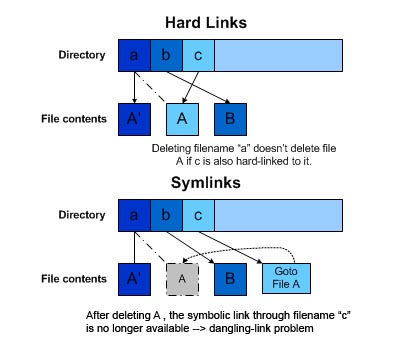
Since the majority of stuff I already learned in Codecademy, I will skip a bunch of this. Continuing though, there are things called links. They create links, similarly to creating a shortcut on Windows. There are two different types of links, hard links and symbolic links.

In this exercise, you work with symbolic links and hard links:

1. Open a shell as a regular (nonroot) user.

Use screen for this!

2. From your home directory, type ln /etc/passwd .. (Make sure that the command ends with a dot!) This command gives you an “operation not permitted” error because you are not the owner of /etc/passwd.

Do sudo for this, it requires that kind of permission.

3. Type ln -s /etc/passwd .. (Again, make sure that the command ends with a dot!) This works; you do not have to be the owner to create a symbolic link.

They're right, no owner privileges needed.

4. Type ln -s /etc/hosts. (This time with no dot at the end of the command.) You’ll notice this command also works. If the target is not specified, the link is created in the current directory.

I've created a symbolic link with hosts. It highlights the directory in a certain color.

5. Type touch newfile and create a hard link to this file by using ln newfile linkedfile.

Now both words within the home directory are highlighted in blue.

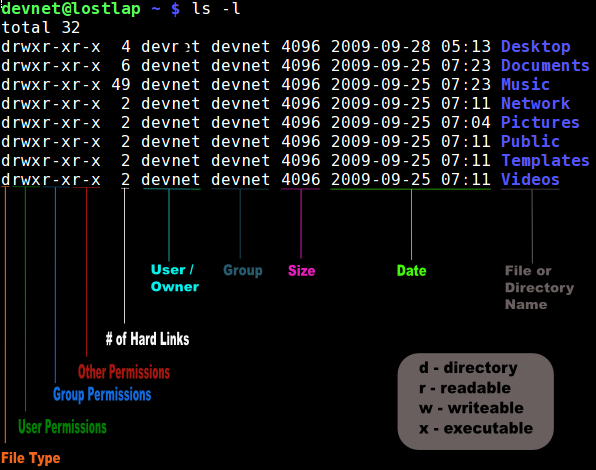
6. Type ls -l and notice the link counter for newfile and linkedfile, which is currently set to 2.

7. Type ln -s newfile symlinkfile to create a symbolic link to newfile.

This worked.

8. Type rm newfile.

Interestingly, linkedfile remains, while symlinkedfile is there, but it doesn't have any file to "shortcut", so it's kind of just dead.

9. Type cat symlinkfile. You will get a “no such file or directory” error message because the original file could not be found.

True.

10. Type cat linkedfile. This gives no problem.

Already said that.

11. Type ls -l and look at the way the symlinkfile is displayed. Also look at linkedfile, which now has the link counter set to 1.

Yes, this means that linkedfile is just itself, it has no connection newfile, since newfile is dead/deleted. So basically linkedfile is a clone of newfile, and newfile still exists, but inside of linkedfile.

12. Type ln linkedfile newfile.

This brought newfile, back to life!

13. Type ls -l again. You’ll see that the original situation has been restored.

Final note, I will focus an entire blog post on Tar since I have to make a presentation about it. But for now This is where it ends. Time for Review Questions!

Review Questions

1. Which directory would you go to if you were looking for configuration files?

/etc

2. What command enables you to display a list of current directory contents, where the newest files are listed first?

ls -alt

3. Which command enables you to rename the file myfile to your file?

mv myfile yourfile

4. Which command enables you to wipe an entire directory structure, including all of its contents?

rm -rf

5. How do you create a link to the directory /tmp in your home directory?

ln -s /tmp

6. How would you copy all files that have a name that starts with a, b, or c from the directory /etc to your current directory?

cp /etc/[abc]

7. Which command enables you to create a link to the directory /etc in your home directory?

ln -s /etc ~

8. What is the safe option to remove a symbolic link to a directory?

rm symlink is the SAFEST.

9. How do you create a compressed archive of the directories /etc and /home and write that to /tmp/etchome.tgz?

tar zcvf /tmp/etchome.tgz /etc /home
10. How would you extract the file /etc/passwd from /tmp/etchome.tgz that you have created in the previous step?

tar xvf /tmp/etchome.tgz /etc/passwd